Newsletter Subscribe
Enter your email address below and subscribe to our newsletter

 ByJohn A
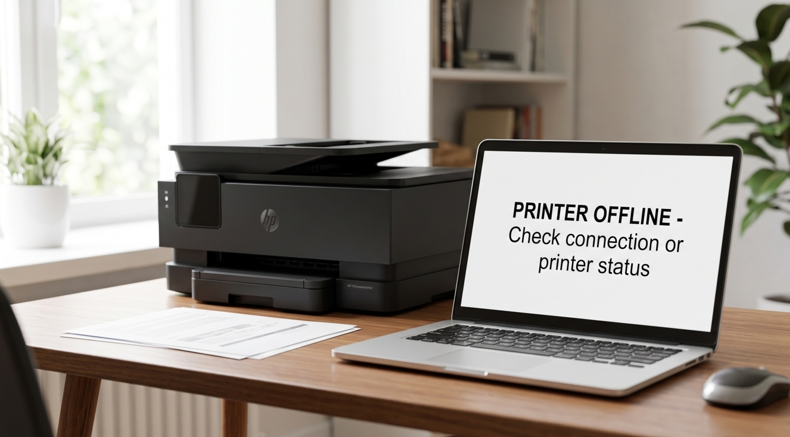
You click print, the progress bar disappears, and your page never comes out. Then you see the message: “HP printer offline.” The printer is on, the lights are glowing, and it still refuses to work.
It’s frustrating, especially when you’re in a hurry. The good news is that an offline HP printer is rarely broken. In most cases the printer and your computer have simply lost contact, and you can fix it yourself in a few minutes. Here are seven fixes that work, starting with the easiest.
When your computer says the printer is offline, it can’t communicate with it at that moment. The printer itself may be perfectly healthy. The problem is usually the connection, a setting on your computer, or a stuck print job.
Knowing the likely cause helps you pick the right fix, so read through the list below.
This simple step solves more cases than you’d expect. Turn off the printer, your router and your computer. Switch the router on first and wait about a minute. Then turn on the printer, and finally the computer. Each device gets a fresh start and can reconnect cleanly.
Look at the wireless light on your printer. If it’s blinking or off, the printer isn’t connected. Make sure the printer and your computer are on the same Wi-Fi network. Many homes and offices have separate main and guest networks, and a mismatch is a very common cause. If you can, try a USB cable for a moment. If the printer works over USB, you know the problem is the wireless connection and not the printer.
Sometimes this setting gets switched on without you noticing. On a Windows computer:
If the printer was set to work offline, it should show as ready within seconds.
One failed document can block every job behind it. In the print queue window, choose Printer → Cancel All Documents. Restart the printer, then send a single test page. If it prints, a stuck job was the culprit.
Your computer may be sending the job to the wrong printer, such as a PDF writer or an old device. Open your printer list, right-click your HP printer and select Set as default printer.
An old or damaged driver is a frequent cause, especially after a Windows or macOS update. Remove the printer from your computer, then download the latest driver for your exact model from HP’s official support website. The free HP Smart app can also detect your printer, repair the connection and run diagnostics for you.
If nothing has worked so far, reconnect the printer to your network from scratch. Open the wireless settings on the printer’s control panel, run the wireless setup wizard, choose your network and enter the password again. For a long-term fix, give the printer a fixed (static) IP address in your router settings, so it never changes and breaks the link.
Sometimes a printer that looks offline is really struggling with another problem. A cartridge that’s not seated properly, one that’s empty, or a cheap unbranded cartridge can cause errors that confuse the printer’s status. Open the cover, remove the cartridge, check that it’s clean and push it back in firmly.
If the toner is low or you’ve been having repeated cartridge errors, switching to good-quality HP toner cartridges that match your printer model helps keep it working smoothly and your prints sharp. Always check your exact model number before buying, as the wrong cartridge causes many avoidable problems.
These small habits take only a few minutes and save you a lot of frustration.
If you’ve tried all seven fixes and the printer is still offline, the problem may be inside the machine. It’s time for expert help if:
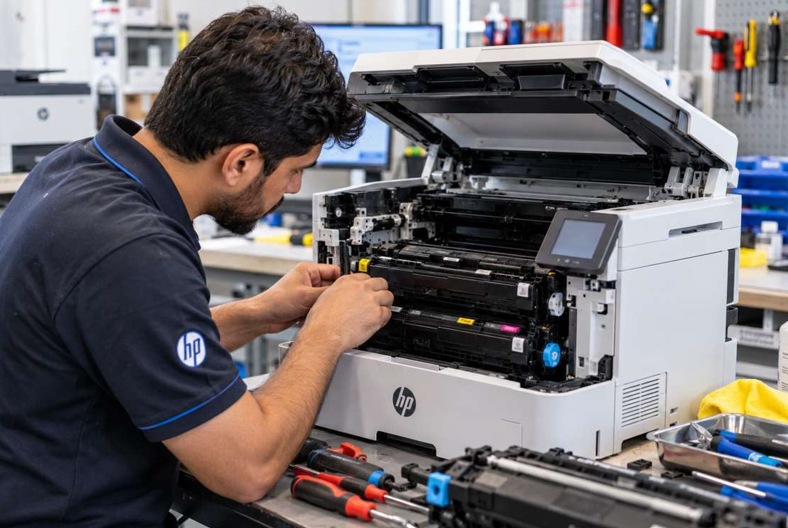
A faulty wireless module or a motherboard problem can’t be solved with settings, and opening the printer yourself can cause more damage. A trusted HP printer repair in Dubai service can test the hardware, find the exact fault and often get you printing again quickly, without the cost of replacing the whole printer.
An HP printer showing offline is annoying, but it’s usually a small communication problem rather than a serious fault. Restart your devices, check the network, clear the queue, update the driver and reconnect to Wi-Fi, and most people are printing again within ten minutes. If the problem keeps coming back, don’t waste your day on it. Get professional help and get back to work.